Left-hand side

View page in browser
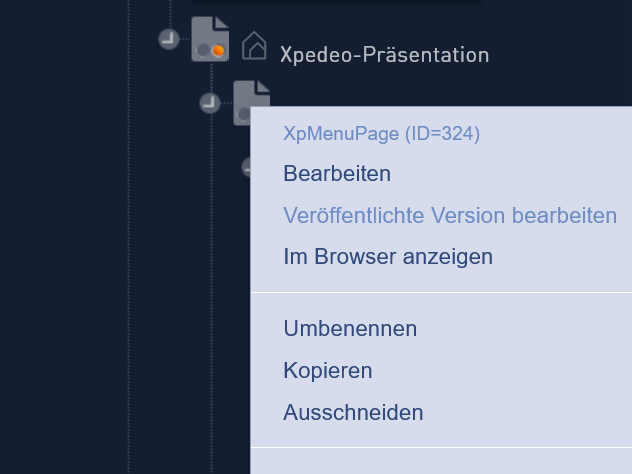
In the top-left corner, you can use the ‘Display’ button to view the current page in your browser. Alternatively, you can right-click on an icon in the page tree (on mobile devices, tap the icon) and select ‘Display in browser’ from the menu.
Language selection
The language of the current page is displayed here, and you can use this button to switch between the different language versions of the page.
A primary language is selected for a page in the settings. In this language, you can edit the content structure of the page, as well as the arrangement of sections and entries. For each other language version of the page, you can specify whether it is visible to visitors. In the secondary language versions, the arrangement of sections and entries cannot be changed; only the relevant entries need to be translated.
If a language version of a page is to have a completely different structure to that of the main language, two entirely different pages can be created at the same time. In this case, for example, the English version will not be visible in the German version, and the German version will not be visible in the English version.
Clipboard
You can move items using the clipboard. Drag and drop the desired item into the clipboard and paste it elsewhere. The item will be cut from its original location and will only exist where you have pasted it.

Alternatively, on mobile devices, you can use the pop-up menu to cut or copy items.

Right-hand side

User
My Profile
This menu item displays, amongst other things, the current user’s username and user groups. If permitted, you can change your password here.
My Workspace
Here you can see which pages you have most recently viewed or edited, which page branches you are responsible for, and in which page branches you have write access. You can also see for which pages you have received publication requests. Clicking on the page ID or page name opens the relevant page in the layout window; clicking the ‘View’ icon on the right-hand side of the table displays the page in your browser.
Undo/Redo
This opens a list of all actions, which you can undo individually (‘Undo’). You can reverse the undo using ‘Redo’. The result is displayed immediately in the layout window.
PLEASE NOTE: if several users are working on a page at the same time, this function cannot be used to its full extent.
Extras
Media Centre
This is where all the media used on the website is stored, whether it be images, PDFs, audio files or videos. This allows a file to be used in several places on the website, thereby increasing efficiency through reduced data usage and faster file sharing.
Further information on using the Media Centre.
Extras for administrators:
User Groups
Here you will find an overview of the user groups that have been created and can manage them.
Users
Here you will find an overview of the users and can manage them.
Tags
Tags are used to define which categories and filter options should be available. Here you can create and manage the tags for your site.
Links
Here you can manage the links on your site.
Jobs
You can find automatic background processes in the job management section.
Help
Clicking the Help button will take you to this additor® Help section.